이번 글에서는
FastAPI 서비스 앞단에 Reverse Proxy(Nginx / Caddy)를 배치하고,
Metrics Server + HPA(오토스케일링) + 부하 테스트까지 한 번에 경험해보는 실습을 진행합니다.
로컬 Minikube 환경에서
실제 운영 환경처럼 로드밸런싱 → 프록시 → 스케일링 → 부하테스트 순서로 이어지는 전체 흐름을 직접 확인할 수 있습니다.
1. FastAPI 서비스 준비 (fastapi-svc)
이전글에서 만들어둔 FastAPI가 아닌 새로 작성한 fastapi.yaml의 Deployment와 Service를 기동합니다.
apiVersion: apps/v1
kind: Deployment
metadata:
    name: fastapi-test2-k8s
    labels: { app: fastapi }
spec:
    replicas: 2
    selector:
        matchLabels: { app: fastapi }
    template:
        metadata:
            labels: { app: fastapi }
        spec:
            containers:
                - name: app
                  image: tiangolo/uvicorn-gunicorn-fastapi:python3.11-slim
                  env:
                      - name: PORT
                        value: "80"
                  ports:
                      - containerPort: 80
                  readinessProbe:
                      httpGet: { path: /docs, port: 80 }
                      initialDelaySeconds: 5
                      periodSeconds: 5
                  livenessProbe:
                      httpGet: { path: /docs, port: 80 }
                      initialDelaySeconds: 10
                      periodSeconds: 10
---
apiVersion: v1
kind: Service
metadata:
    name: fastapi-svc
    labels: { app: fastapi }
spec:
    selector: { app: fastapi }
    ports:
        - name: http
          port: 80
          targetPort: 80
    type: ClusterIP
kubectl apply -f fastapi.yaml
kubectl get svc fastapi-svc
FastAPI는 Pod 2개 이상 띄워두면 뒤에서 로드밸런싱 테스트가 자연스럽게 됩니다.
2. Nginx Reverse Proxy 구성
✔️ Nginx란?
Nginx는 서버 앞단에서
클라이언트 요청을 받아 백엔드 서버로 전달하는 Reverse Proxy로 많이 사용됩니다.
대표적인 기능은
- 요청 라우팅
- 로드밸런싱
- SSL 처리
- 캐싱
이번 실습에서는 FastAPI Pods 여러 개에 요청을 분산하는 프록시 역할로 사용합니다.
2-1. nginx.conf 작성 → ConfigMap 생성
Nginx 설정파일은 Pod 내부가 아니라 Kubernetes의 ConfigMap으로 관리합니다.
## nginx.conf

worker_processes auto;

events {
  worker_connections 1024;
}

http {
  include       /etc/nginx/mime.types;
  default_type  application/octet-stream;

  # 상세 액세스 로그 (업스트림 응답시간 포함)
  log_format main '$remote_addr - $remote_user [$time_local] '
                  '"$request" $status $body_bytes_sent '
                  '"$http_referer" "$http_user_agent" '
                  'rt=$request_time urt=$upstream_response_time '
                  'ua=$upstream_addr';
  access_log /var/log/nginx/access.log main;

  sendfile        on;
  tcp_nopush      on;
  keepalive_timeout 65s;
  server_tokens   off;
  client_max_body_size 16m;

  # gzip 기본값
  gzip on;
  gzip_comp_level 5;
  gzip_min_length 1024;
  gzip_types
    text/plain text/css application/json application/javascript
    application/xml text/xml application/rss+xml
    image/svg+xml;

  # K8s Service 로 프록시
  upstream fastapi_upstream {
    server fastapi-svc:80;   # 클러스터 DNS로 해석
    keepalive 32;
  }

  server {
    listen 80 default_server;
    server_name _;

    # Nginx 자체 헬스체크 엔드포인트
    location = /nginx-health {
      return 200 'ok';
      add_header Content-Type text/plain;
    }

    # 정적 자원은 캐시 힌트 부여 (백엔드가 /static 제공 시)
    location /static/ {
      proxy_pass http://fastapi_upstream;
      proxy_http_version 1.1;

      proxy_set_header Host              $host;
      proxy_set_header X-Real-IP         $remote_addr;
      proxy_set_header X-Forwarded-For   $proxy_add_x_forwarded_for;
      proxy_set_header X-Forwarded-Proto $scheme;
      proxy_set_header Connection        "";

      expires 1h;
      add_header Cache-Control "public, max-age=3600";
      add_header X-Served-By "Nginx" always;
    }

    # 기본 프록시 (FastAPI 루트/헬스 등 포함)
    location / {
      proxy_pass http://fastapi_upstream;
      proxy_http_version 1.1;

      # 프록시 헤더
      proxy_set_header Host              $host;
      proxy_set_header X-Real-IP         $remote_addr;
      proxy_set_header X-Forwarded-For   $proxy_add_x_forwarded_for;
      proxy_set_header X-Forwarded-Proto $scheme;
      proxy_set_header Connection        "";

      # 버퍼/타임아웃
      proxy_buffering on;
      proxy_buffers 32 8k;
      proxy_busy_buffers_size 64k;
      proxy_read_timeout 60s;
      proxy_send_timeout 60s;

      add_header X-Served-By "Nginx" always;
    }
  }
}
kubectl create configmap nginx-config \
  --from-file=nginx.conf=nginx.conf \
  -o yaml --dry-run=client | kubectl apply -f -

  kubectl get configmap nginx-config -o yaml # nginx-configmap 확인
2-2. Nginx Deployment 배포 및 Service 생성
kubectl apply -f nginx.yaml
kubectl get pods -l app=nginx-proxy -w
kubectl apply -f nginx-svc.yaml
kubectl get svc nginx-svc

minikube service nginx-svc --url # 접속 확인
2-4. Nginx Reverse Proxy 테스트
✔ 기본 요청
curl http://192.168.49.2:30081✔ 로드밸런싱 확인
FastAPI Pod가 2개 이상이라면 번갈아 응답합니다.
for i in {1..5}; do
  curl http://192.168.49.2:30081
  echo ""
done
3. Caddy Reverse Proxy 구성
✔️ Caddy란?
Caddy는 자동 HTTPS + 간결한 문법 + 빠른 설정 Reload를 강점으로 가진 Reverse Proxy 서버입니다.
Nginx보다 설정이 훨씬 쉽기 때문에 개발 환경에서 인기가 많습니다. 이번엔 동일한 FastAPI 서비스 앞단에 Caddy를 붙입니다.
3-1. Caddyfile → ConfigMap 생성
캐디파일 작성
## Caddyfile

{
  # 관리 API 비활성화(강의/실습용)
  admin off

  # 전역 로그 설정 (default 로거)
  log default {
    level INFO
    format console
    output file /var/log/caddy/access.log {
      roll_size 10MiB
      roll_keep 5
      roll_keep_for 720h
    }
  }

  # 프록시 신뢰(사설망)
  servers {
    trusted_proxies static private_ranges
  }
}

:80 {
  # 헬스 엔드포인트 (liveness/readiness 용)
  @health path /caddy-health
  handle @health {
    respond "ok" 200
  }

  # 정적 경로가 백엔드에서 제공된다면 캐시 힌트
  handle_path /static/* {
    reverse_proxy http://fastapi-svc:80
    header Cache-Control "public, max-age=3600"
  }

  # 기본 프록시 (FastAPI 전체)
  handle {
    reverse_proxy http://fastapi-svc:80 {
      # 백엔드 헬스엔드포인트가 있다면(예: /health) 수동 점검에 활용
      health_uri /health
      flush_interval -1
      transport http {
        read_timeout 60s
        write_timeout 60s
        keepalive 30s
      }
    }
  }

  # 압축(자동 협상)
  encode zstd gzip
}kubectl create configmap caddy-config \
--from-file=Caddyfile=Caddyfile \
-o yaml --dry-run=client | kubectl apply -f -
kubectl get configmap caddy-config -o yaml # 확인apiVersion: apps/v1
kind: Deployment
metadata:
name: caddy-proxy
labels: { app: caddy-proxy }
spec:
replicas: 1
selector:
matchLabels: { app: caddy-proxy }
template:
metadata:
labels: { app: caddy-proxy }
spec:
containers:
- name: caddy
image: caddy:2
ports:
- containerPort: 80
resources:
requests: { cpu: "100m", memory: "128Mi" }
limits: { cpu: "500m", memory: "256Mi" }
# 헬스체크는 Caddyfile의 /caddy-health 사용
livenessProbe:
httpGet: { path: /caddy-health, port: 80 }
initialDelaySeconds: 5
periodSeconds: 10
readinessProbe:
httpGet: { path: /caddy-health, port: 80 }
initialDelaySeconds: 3
periodSeconds: 5
volumeMounts:
- name: caddy-conf
mountPath: /etc/caddy/Caddyfile
subPath: Caddyfile
- name: caddy-logs
mountPath: /var/log/caddy
volumes:
- name: caddy-conf
configMap:
name: caddy-config
items:
- key: Caddyfile
path: Caddyfile
- name: caddy-logs
emptyDir: {}apiVersion: v1
kind: Service
metadata:
name: caddy-svc
labels: { app: caddy-proxy }
spec:
selector: { app: caddy-proxy }
type: NodePort
ports:
- name: http
port: 80
targetPort: 80
nodePort: 30082 # 필요 시 다른 포트로 변경 가능kubectl apply -f caddy.yaml
kubectl get pods -l app=caddy-proxy -w
kubectl apply -f caddy-svc.yaml
kubectl get svc caddy-svc
minikube service caddy-svc --url⚠ 루트(/)는 Caddyfile에서 비워뒀기 때문에 /caddy-health 또는 /static/ 으로 확인해야 정상입니다.
3-3. Caddy Deployment + Service 생성
헬스 체크
curl http://192.168.49.2:30082/caddy-healthcurl http://192.168.49.2:30082/static/
🧩 현재 아키텍처 정리
[Client]
   ├──> Nginx Service(30081) ──> Nginx Pods ──> FastAPI Pods
   └──> Caddy Service(30082) ──> Caddy Pods ──> FastAPI Pods
둘 다 FastAPI 뒤에서 Reverse Proxy 역할을 하며, FastAPI Pods는 2개 이상으로 로드밸런싱 가능합니다.
4. Metrics Server + HPA 구성
✔ Metrics Server란?
Kubernetes에서 Pod/Node의 CPU, Memory 메트릭을 수집해주는 시스템입니다.
HPA가 스케일링하려면 반드시 Metrics Server가 필요합니다.
4-1. Metrics Server 활성화
minikube addons enable metrics-server
kubectl get deployment metrics-server -n kube-system
sleep 60
kubectl top nodes
kubectl top pods4-2. HPA 생성
FastAPI Deployment 작성 (deployment.yaml)
apiVersion: apps/v1
kind: Deployment
metadata:
  name: fastapi-deploy
spec:
  replicas: 2
  selector:
    matchLabels: { app: fastapi }
  template:
    metadata:
      labels: { app: fastapi }
    spec:
      containers:
        - name: app
          image: tiangolo/uvicorn-gunicorn-fastapi:python3.11-slim
          ports:
            - containerPort: 80
          # ↙︎ HPA가 참조할 리소스 요청/제한
          resources:
            requests:
              cpu: "100m"
              memory: "128Mi"
            limits:
              cpu: "500m"
              memory: "256Mi"
          readinessProbe:
            httpGet: { path: /docs, port: 80 }
            initialDelaySeconds: 5
            periodSeconds: 5
          livenessProbe:
            httpGet: { path: /docs, port: 80 }
            initialDelaySeconds: 10
            periodSeconds: 10
FastAPI Deployment 배포
kubectl apply -f deployment.yaml
kubectl rollout status deployment fastapi-deploy
kubectl get pods -l app=fastapi
sleep 60
kubectl top pods -l app=fastapikubectl autoscale deployment fastapi-deploy --cpu="50%" --min=2 --max=10
kubectl get hpa # (unknown 뜨면 kubectl delete deploy fastapi-test2-k8s 후 다시 확인)
5. 부하테스트 (hey 사용)
✔ 부하테스트 도구 간단 비교
| 도구 | 특징 |
| ab | 기본적인 HTTP 벤치마크 |
| wrk | 고성능, Lua 스크립팅 가능 |
| hey | Go 기반, 가볍고 간편 |
| k6 | 시나리오 기반, 기업용 테스트 |
→ 실습에 가장 적합한 hey 사용
5-1. hey 설치
wget https://hey-release.s3.us-east-2.amazonaws.com/hey_linux_amd64
chmod +x hey_linux_amd64
sudo mv hey_linux_amd64 /usr/local/bin/hey
hey -hcurl -i http://192.168.49.2:30082/caddy-health
curl -i http://192.168.49.2:30082/static/Terminal #1: Pod 증가 관찰
watch -n 1 'kubectl get pods -l app=fastapi'Terminal #2: HPA 확인
kubectl get hpaTerminal #3: 3분간 폭주 요청
hey -z 3m -c 50 -q 500 http://192.168.49.2:30082/static/
부하량이 높아지면 fastapi-deploy의 Pod가 자동으로 2 → 3 → 4 … 증가하는 오토스케일링 과정을 실시간으로 볼 수 있습니다.
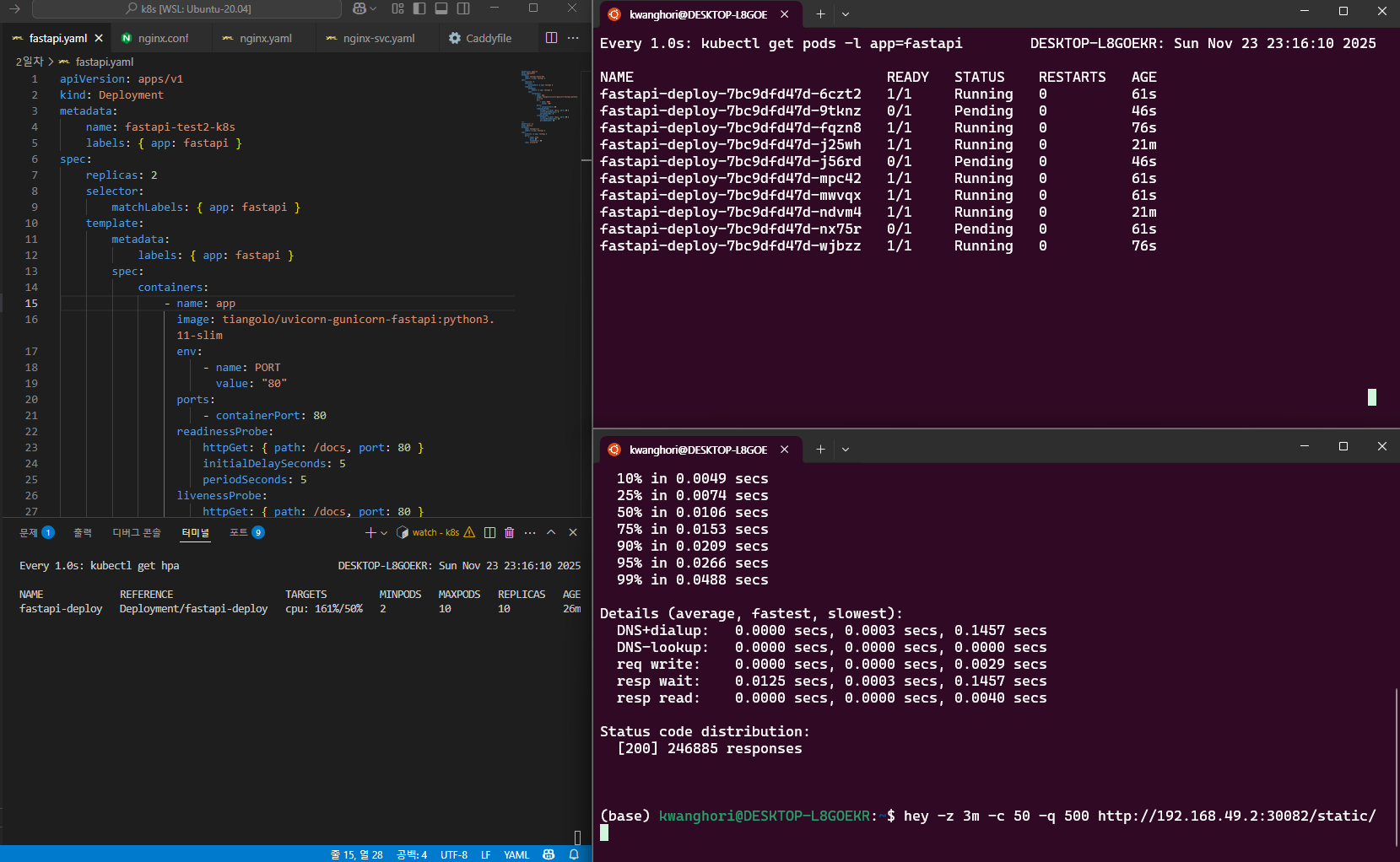
Summary:
  Total:        167.4590 secs
  Slowest:      0.1411 secs
  Fastest:      0.0003 secs
  Average:      0.0158 secs
  Requests/sec: 3171.1940

  Total data:   48325095 bytes
  Size/request: 91 bytes

Response time histogram:
  0.000 [1]     |
  0.014 [285671]        |■■■■■■■■■■■■■■■■■■■■■■■■■■■■■■■■■■■■■■■■
  0.028 [195726]        |■■■■■■■■■■■■■■■■■■■■■■■■■■■
  0.043 [36378] |■■■■■
  0.057 [8682]  |■
  0.071 [2916]  |
  0.085 [1049]  |
  0.099 [407]   |
  0.113 [162]   |
  0.127 [43]    |
  0.141 [10]    |


Latency distribution:
  10% in 0.0055 secs
  25% in 0.0089 secs
  50% in 0.0136 secs
  75% in 0.0199 secs
  90% in 0.0278 secs
  95% in 0.0348 secs
  99% in 0.0547 secs

Details (average, fastest, slowest):
  DNS+dialup:   0.0000 secs, 0.0003 secs, 0.1411 secs
  DNS-lookup:   0.0000 secs, 0.0000 secs, 0.0000 secs
  req write:    0.0000 secs, 0.0000 secs, 0.0020 secs
  resp wait:    0.0157 secs, 0.0003 secs, 0.1410 secs
  resp read:    0.0000 secs, 0.0000 secs, 0.0042 secs

Status code distribution:
  [200] 531045 responses
6. 마무리
이번 글에서는
- Nginx와 Caddy를 Reverse Proxy로 구성하고
- ConfigMap으로 설정 관리하고
- Metrics Server를 통해 메트릭을 수집하고
- HPA로 자동 스케일링을 설정한 뒤
- 실제 부하를 넣어 Pod가 늘어나는 과정까지
운영 환경 핵심 개념을 로컬에서 전부 실습했습니다.
'IT > [클라우드]' 카테고리의 다른 글
| [Kubernetes] ConfigMap & Secret으로 FastAPI 설정 분리하기 (4) (0) | 2025.11.23 |
|---|---|
| [Kubernetes] Rolling Update & Rollback으로 FastAPI 무중단 배포하기 (3) (0) | 2025.11.23 |
| [Kubernetes] Minikube로 FastAPI 앱 배포하기 실습 (2) (0) | 2025.11.22 |
| [Kubernetes] AI·빅데이터 직무를 위한 쿠버네티스 개념 이해 (1) (0) | 2025.11.22 |
| [AWS EC2] EC2 인스턴스 볼륨 용량 늘리기 (0) | 2024.06.04 |

